
All match tickets are issued in the Manchester United official app and use Near Field Communication technology. NFC is widely used for contactless payments. Your tickets are fully secure and in line with Premier League guidance. • You can see your tickets for all upcoming fixtures • You can easily manage tickets for you and those in your network • Forward, donate and resale functions are also available in the app
Your guide to app tickets

Everything you need to know about app tickets
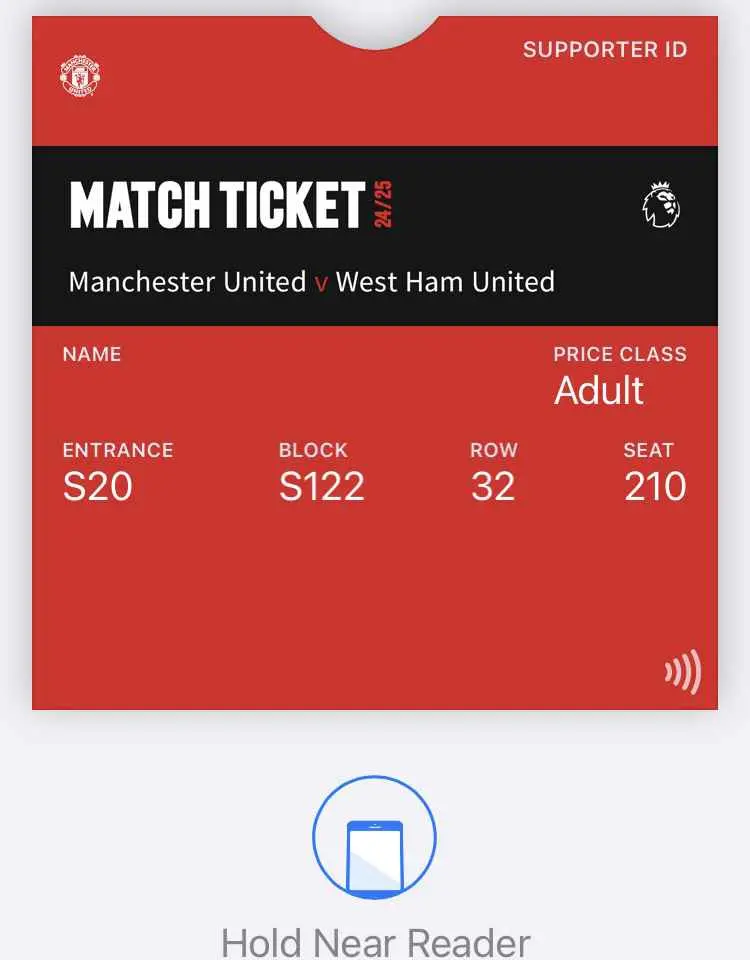
NFC tickets
TIP: Check your NFC settings are switched on (android users) Before matchday, make sure to add your ticket to your Google or Apple wallet. Load your ticket and tap the back of your phone at the scanner.
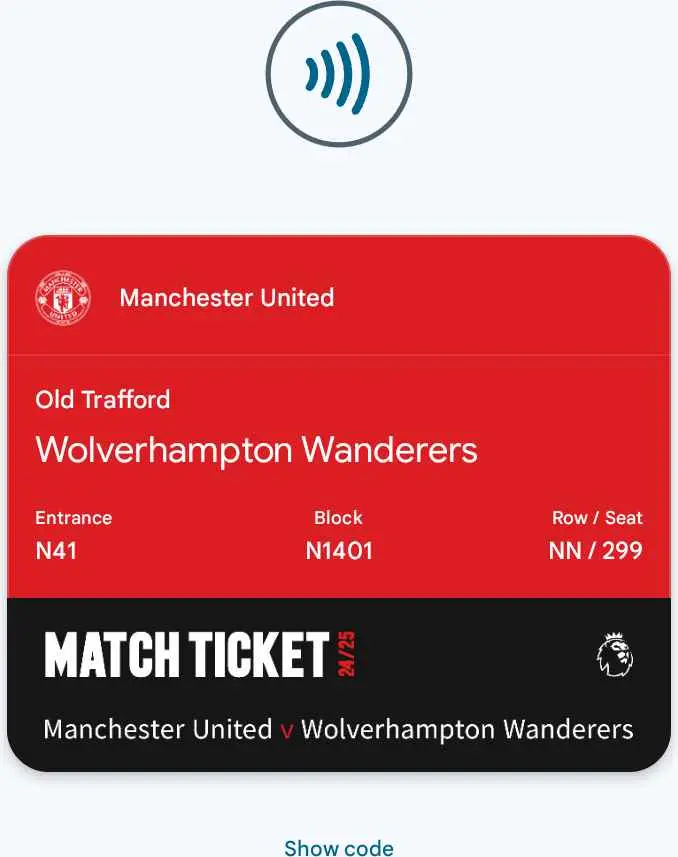
We're here to help
To help you familiarise yourself with app tickets, visit our app tickets support hub for video guides and tutorials.
Frequently Asked Questions
Getting started with the app
It’s really easy to download the Manchester United App from your smartphone or tablet device. If you’re using an Apple device just head to the App Store. If you’re on an Android device, simply go to the Play Store.
All supporters will need to access their match tickets in the app this season. There are no other options available, therefore unfortunately you will not be able to attend if you’re unable to access your tickets in this way. Please contact our Supporter Services team to discuss your options if you need to cancel your tickets.
If you previously accessed tickets using your Apple or Google wallet, your phone can support in-app tickets. Your phone must be compatible with NFC technology. Advanced specifications For iOS (Apple): you will require a device running iOS 15 or above. (iOS 15 is supported by iPhone 6s or newer (2015 onwards). For Android: we recommend using a device running Android 12 (2021 onwards) or higher for fully supported ticketing features. Our minimum supported version for download is Android 10. If you have any questions around devices, please contact Supporter Services.
All match tickets will be issued in the Manchester United App, therefore if your device does not support apps, you will need to replace your device to be able to attend games at Old Trafford going forward. For iOS (Apple) devices, you will require a device running iOS 15 or above (supported by iPhone 6s or newer i.e. 2015 onwards) and for Android (Google) devices it will need to run at Android 11 or above.
We regularly review and revise which Operating Systems our app supports so that we offer a stable and secure experience for fans. As with all other apps, this can mean dropping support for older OS versions, which means new app updates are then no longer available. This usually happens around the release of Apple and Google OS updates in the latter half of the year.
Please log in to the Manchester United official app with the same log in details you use to access the ticketing website.
Make sure to check you do not already have an existing online account by attempting to reset your password. If your account already exists, you will receive a reset password instruction email.
Alternatively, please create an online account. Please make sure you use the same details you use to access tickets from the ticketing website. This will automatically link your online account to your Season Ticket information or United Membership information.
To reset your password, click on this link.
Tap on Profile icon (top-right corner of the app)
Select the Settings icon in the top-right corner
Tap 'My Profile' and then 'Log out'
Select 'Logout' in the pop-up to log out of the app
Note: If you are logged out of the app, you will not be able to access our Tickets.
Accessing your tickets in the app
Select the ‘Ticket’ icon in the bottom right corner of the navigation bar at the bottom of your screen. Scroll down and you will see a button with a photo of Bruno Fernandes. Tap the ‘View my Tickets’ button to view your upcoming tickets.
Please ensure you are logged into the correct account and are on the latest app version (26.0.0). To check this, please go to the App Store on your device and ensure you have no updates available.
Alternatively, go into the Manchester United official app and tap the cogwheel in the top right corner of the screen. Select "General" and then "Help". The app version will be displayed at the bottom of the screen. If you are not on 26.0.0 or higher please go to your device’s app store and upgrade the app.
Please contact Supporter Services who will be able to assist.
This is one of the new security features of the app that will help to keep your ticket secure. When you tick the box and proceed your Supporter ID and all tickets that you own will only be visible only on this device. You cannot log in on a different device to access your tickets.
If you are 16 or under/have a carer/have an App Ticket relationship set up, your parent/guardian/carer will still be able to see your tickets on their device. (Please take a look at the Linked Accounts and Ticket Relationships FAQs below.)
If this is not the device you will be taking with you to the matches, do not proceed and please close the app at this point and redo the process on the device you will be taking with you to Old Trafford on match day.
If you lose your phone or get a new phone and need to change the device linked to your tickets, please contact us on 0161 676 7770 or tickets@manutd.co.uk and we will be happy to help.
“Ticket Verification Screen”
Please open a web browser, go to tickets.manutd.com and log in. You will be presented with a “complete your registration page”. Please fill in the missing details and return to the app and try again. If you are struggling, please contact Supporter Services.
“This is not your authorised device”
This means that you have already authorised a different device as your primary device on your account. This means that only on that device you are able to access your tickets. Please contact Supporter Services for more information.
“Oops something went wrong” message
To fix this error, please log out of the app, and then force close the app. Re-open the app and log back in using your ticketing credentials. Navigate back to ‘My Tickets’. The error should now be gone. If the error persists, please contact Supporter Services.
How to log out
Tap the back arrow (in the top-left corner) to return to Tickets
Tap the Profile icon in the top-right corner
Select 'Settings'
Select 'My Profile'
Select 'Log out', then 'Log out' option on the pop-up
To make it easier for you to manage your tickets throughout the season, you will have a separate ticket for each fixture.
This means, if you choose to donate, forward or resell your ticket, it will be removed from your upcoming fixture list.
To ensure all your tickets will be available without internet connection, please click on every individual match, and download them to your digital wallet.
We recommend accessing your ticket in the app before arriving at the stadium. If your ticket has not appeared in the app, please ensure you are logged in on the correct account and that you have a ticket purchased for the game. If you still do not see your ticket, please contact Supporter Services.
We have moved to NFC tickets, which means your ticket will no longer show a QR code. Simply click into your ticket, add to your Google or Apple wallet prior to the game and tap your phone to the scanner at the turnstile.
Yes, we will contact you as and when to expect to see your cup ticket in the app.
This will depend on away stadium facilities; we will contact you if/when your away ticket will be in the app.
Screenshots are not valid tickets and will not work at the turnstile.
Yes, if you cannot attend a game, please forward, donate or list your ticket for resale as usual.
When applicable, you can forward, donate or list your ticket via the app or the ticketing website.
You can forward a ticket up until kick-off
You can list your ticket for resale up until the day of the game to ensure a full refund. Season Ticket holders should list their ticket no later than 2 weeks prior to the game.
Donation is available until the day before the game
Visit our App Ticket Hub for video guides and tutorials.
Not yet! You can only forward your ticket like for like, i.e. senior to senior or concession to concession. Adult tickets can be forwarded to any qualifying supporter.
Once your ticket has been purchased, it will disappear from your upcoming fixtures list in the app. Alternatively, you can also check on the ticketing website
Go to tickets.manutd.com to update your payment details. Once updated, your details will automatically sync to the app.
NFC Match Tickets
We are introducing NFC tickets for upcoming games. NFC tickets do not have QR codes. They use the same technology as contactless payments via Google or Apple Pay.
Open your ticket in your app and download to your Google or Apple wallet.
On matchday, simply select your ticket and tap your phone at the turnstile as you would make a contactless payment at a till or checkout. There is no need to scan.
Most modern phones will be able to support NFC tickets, if you have ever paid at a till/checkout using your phone, your device will support NFC. If your device does not support NFC tickets, you will need to replace your device to be able to attend games at Old Trafford going forward. Tech guidance: For iOS (Apple) devices, you will require a device running iOS 15 or above (supported by iPhone 6s or newer i.e. 2015 onwards) and for For Android (Google) devices you will need to check your device model, but most Android devices released from 2017 onwards will be supported, though NFC must be enabled in your device settings.
We have moved to NFC tickets, which means your ticket will no longer show a QR code. Simply click into your ticket, add to your Google or Apple wallet prior to the game and tap your phone to the scanner at the turnstile.
If you have ever used your phone to pay at a checkout, access concert or travel tickets, your NFC setting will already be switched on.
If you see your ticket with an on-screen message "This is an NFC ticket" - this means your NFC setting is turned off.
Go to your device menu
Select "Settings"
Enter "NFC" into the search bar
Turn on your NFC settings
Linked accounts and ticket relationships
To keep tickets secure, by default, you will only be able to see your own ticket on your device.
No action is needed, as long as you have strong relationship in place. Your child/dependant’s tickets will automatically appear on your device too. Please note, a child is recognised as someone aged under 16. If you need to set up a strong relationship, you can do so via the ticketing website.
You will need to set up a strong relationship type with your carer via the ticketing website. Once in place, your carer’s tickets will automatically appear on your device too.
For security reasons, by default, you will only be able to see your own ticket unless you are currently strongly linked to someone aged 16 and under or you are a disabled supporter who has a carer.
It is possible to create a new App Ticket relationship type to see someone else’s ticket, regardless of their age.
Please note, you can only have up to a maximum of 6 supporters linked to your profile with an App Ticket relationship type.
This new relationship type should only be used with trusted people, those whom you set up the relationship with have full control of your ticket. They can forward, resale or donate your ticket.
You can create an App Ticket relationship in the same way you set up a linked account.
On matchday
We no longer use QR code tickets. You just need to download your NFC ticket to your Google or Apple wallet. Simply tap your phone to the scanner at the turnstile in the same place as you would scan it for a QR code ticket.
If your ticket doesn’t just appear, simply close and reopen the app.
NFC TICKETS
Make sure to download your ticket to your Google or Apple wallet before matchday. On the day of the game, your simply tap your phone to the scanner at the turnstile as you would making a contactless payment.
If you face issues with the app or your ticket not opening fully at the turnstile this will be due to a low connection, connect to the free stadium Wi-Fi and you will be able to access your ticket.
If you have previously accessed your ticket in the app, your ticket will remain stored on your device even when you are offline.
Phone battery or charge is the responsibility of the device owner.
Supporters can bring small phone chargers into the stadium (they must be able to fit into your pocket). Please refer to match day bag restrictions and security policy here.
Still need more help?
Don't worry, we're on hand to help. Simply email us at tickets@manutd.co.uk.